Set up BoothLink
BoothLink connects Messages on your Mac to the CRM. Follow this guide from installation through verifying your first message.
Keep it powered on, connected to the internet, signed in, and running BoothLink. You can close the BoothLink window; do not quit the application.
Before you start
You need a Mac for your store, its Apple Account, and a phone number enabled in Messages. Windows and Linux cannot replace that Mac. Other staff use the CRM; they do not need BoothLink installed on every computer.
- Mac administrator access to install the app and approve its permissions.
- Access to the correct workstation and Integrations in US Booths.
- For SMS: an iPhone with the store’s active line, powered on and connected, with forwarding to the Mac enabled.
The installer includes Intel and Apple Silicon and declares macOS 12 or later. Physical checks for this guide used Apple Silicon with macOS 26; they do not certify every hardware and OS combination.
BoothLink copies new one-to-one Messages conversations from that Mac user into the linked store’s CRM. This can include personal messages or codes if you mix accounts. Choose the correct account before linking.
Prepare Apple Messages
- Open Messages on the Mac and sign in with the store’s Apple Account.
- Open Messages → Settings → iMessage. Make sure the store’s number is enabled for incoming messages and selected under Start new conversations from.
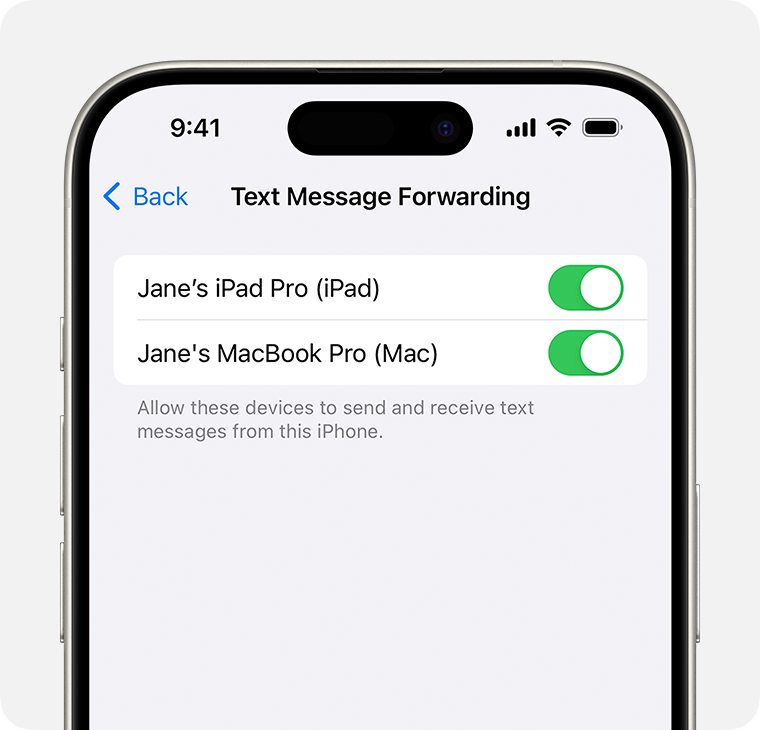
- Use the same Apple Account on the iPhone. For SMS, check Settings → Apps → Messages → Text Message Forwarding and enable the Mac. On older iOS versions, Messages is directly under Settings. If you use Messages in iCloud, Apple may manage forwarding automatically.
- Send and receive a test message in Messages on the Mac first. If it fails there, fix the account or line before setting up BoothLink.
Official instructions: Set up Messages on Mac · Forward messages from iPhone. Control names vary by language and OS version.
Install and allow access
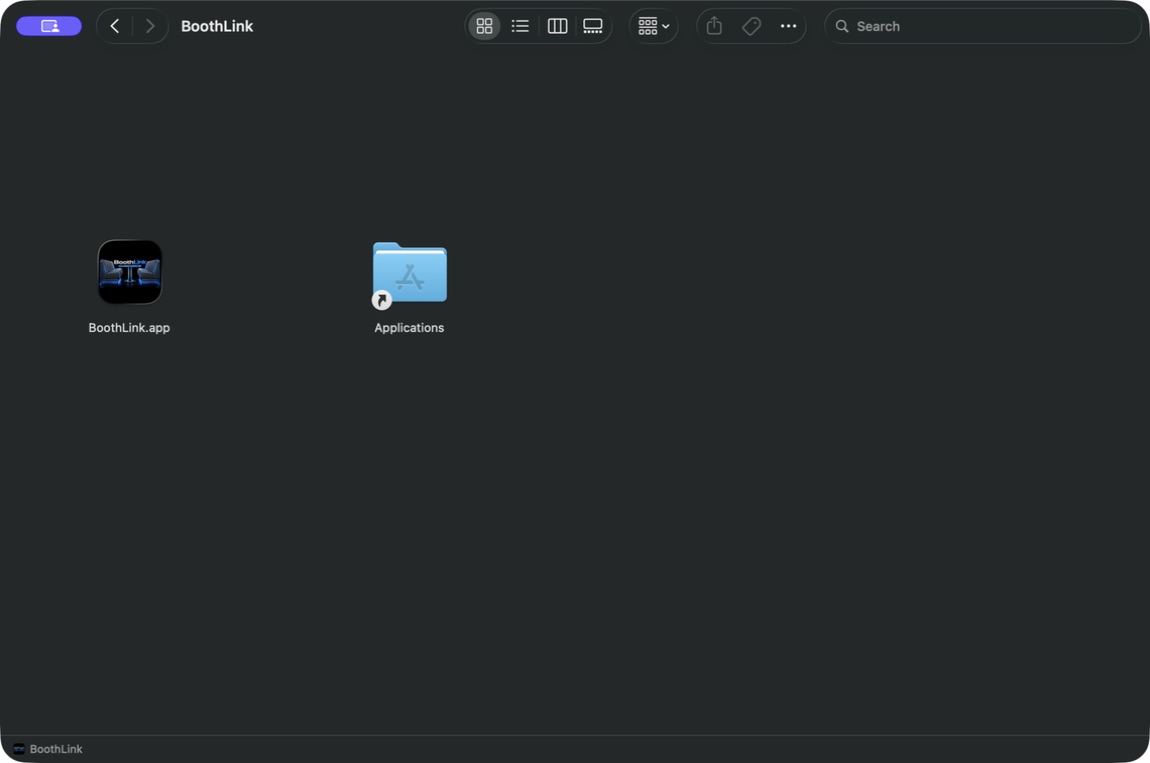
- Download the installer on the Mac that will stay at your store. Open the .dmg file.
- Drag BoothLink.app into Applications. Open the installed copy from Applications, not the installer.
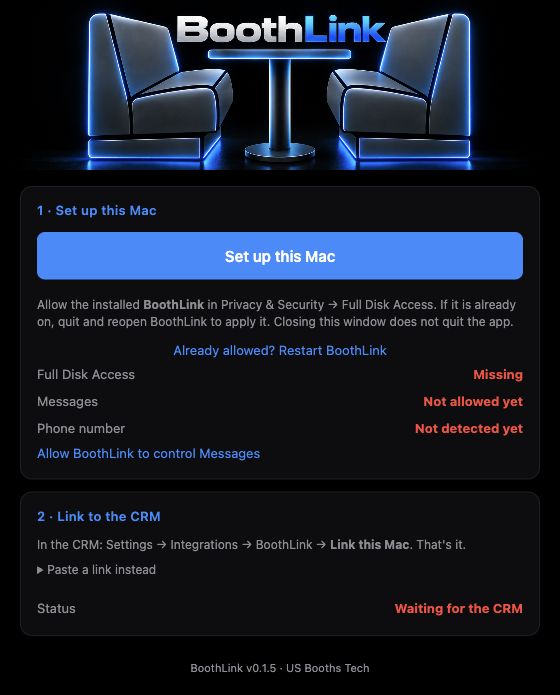
- Click Set up this Mac. If macOS asks whether BoothLink can control Messages, click Allow.
Allow both permissions
| Full Disk Access | Under System Settings → Privacy & Security → Full Disk Access, enable BoothLink. If it is missing, use + and select the installed copy in Applications. This allows it to read the Messages database. |
|---|---|
| Automation | Under System Settings → Privacy & Security → Automation → BoothLink, enable Messages. This allows it to send through Messages. |
After granting Full Disk Access, quit BoothLink and reopen it. You can also click Already allowed? Restart BoothLink. Closing the window with the red button does not restart the app.
Wait for the store’s line to be detected. If you see Not detected yet, check the number in Messages and let it finish syncing. Do not enter a made-up number or a customer’s number.
BoothLink does not require disabling SIP or other macOS protections. Enter your Apple Account password only in Apple’s own screens.
Link your store
In the browser on your store’s Mac
- Open US Booths and select your store’s workstation. Check the name before continuing.
- Go to Integrations → BoothLink → Settings. You may also reach it through Settings → Integrations, depending on your account’s menu.
- Click Link this Mac. Allow the browser to open the installed app, then confirm Link this Mac inside BoothLink.
- Wait for Connected to your CRM on the Mac and Connected in the CRM, with the correct phone number. Initial connection can take a few minutes. Refresh Integrations to check again.
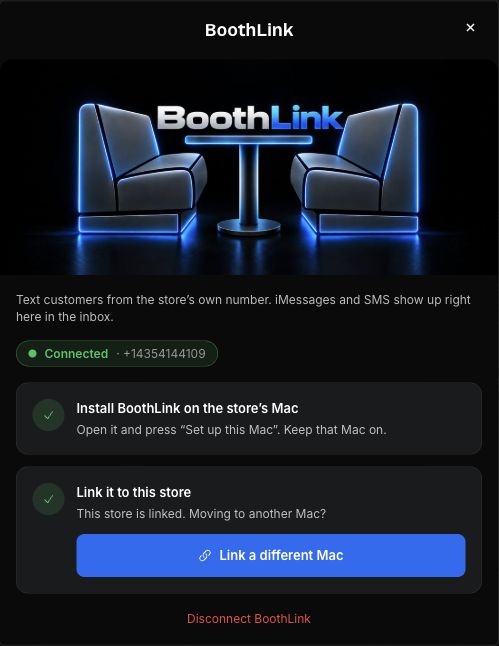
If you are setting up from another computer, copy the link and paste it into Paste a link instead in BoothLink on the store’s Mac. That link is private: never publish it or include it in a support screenshot.
A Super Admin must open Settings → Phone System → Messaging provider, select BoothLink, and confirm In use. If Phone System is not visible to your account, ask US Booths Tech to complete this step.
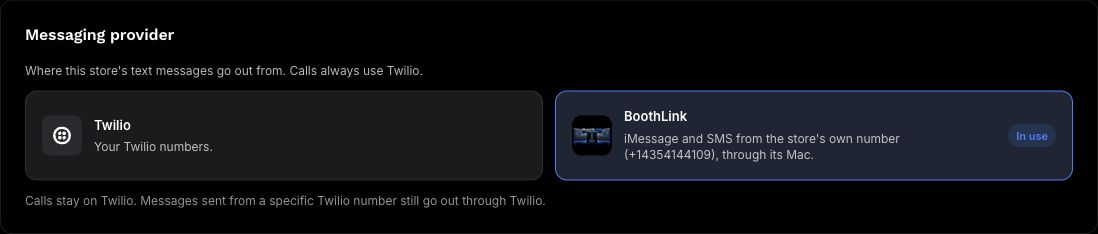
Calls still use Twilio. To send messages with Twilio instead, change Messaging provider in Phone System and verify the refreshed From number.
Replace or disconnect the Mac
Link a different Mac replaces the previous link; do not use it just to refresh status. Disconnect BoothLink stops new synchronization and keeps messages already in the CRM. One Mac links to one store at a time.
Send and receive
First test with a phone you control
- Open Communications and the conversation, or open a contact and its messaging panel. Verify the recipient number, including the country code.
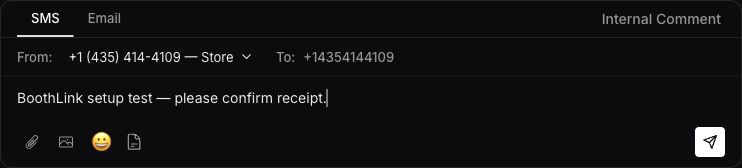
- Select the SMS tab. This tab also sends BoothLink text messages when the actual transport is iMessage. Do not select Email.
- Under From / Send from number, select the store’s linked line. Check To and write a short message without attachments.
- Click Send message once. Verify receipt on the other phone and confirm the sender is the expected number.
- Reply from that phone. Check that the reply appears in the same CRM conversation. Reload the page and confirm both messages remain.
How iMessage or SMS is selected
BoothLink checks valid Messages history. It uses iMessage when that is the recipient’s latest proven channel. An unknown phone number uses SMS when available on the Mac; owning an iPhone alone is not enough. To test iMessage, first establish a working blue-bubble conversation in Messages on the Mac.
If iMessage fails, it is not automatically resent as SMS. Check the thread and test phone before repeating a send with an uncertain result.
What each status means
| Sending | The request is pending. Sending has not yet been confirmed. |
|---|---|
| Sent | Messages reports that it sent the message. This does not mean the recipient’s device received it. |
| Delivered | Apple reported delivery. This is not available for every channel or conversation. |
| Read | Apple reported a read receipt. It depends on the recipient sharing receipts and may not appear. |
| Failed | The send was rejected or failed. Check Messages on the Mac and the error before retrying. |
Reading a thread in the CRM does not automatically mark the conversation as read in Messages on the Mac. Synced since opened counts synchronization since BoothLink opened; it does not prove customers read your messages.
Keep it available
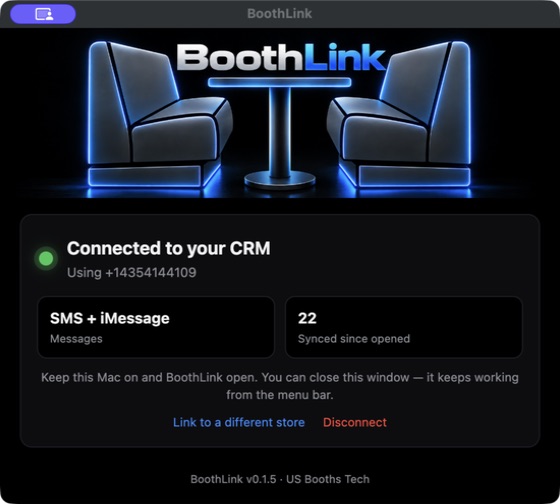
- Mac powered on and online. Keep the macOS user signed in. Locking the screen is different from signing out.
- BoothLink running. Closing its window leaves it in the menu bar. Quit BoothLink stops it.
- MacBook plugged into power, lid open. Do not rely on closed-lid operation for your store.
- Avoid automatic sleep. On a MacBook, check System Settings → Battery → Options → Prevent automatic sleeping on power adapter when the display is off. On a desktop Mac, check Energy. Keep password-protected screen locking enabled.
- For SMS, keep the iPhone available too. Its line and required network connection must remain active for forwarding.
While running, BoothLink requests protection against idle sleep and asks to open at login. It cannot prevent you from powering off, closing the lid, or signing out. After restarting, sign in and verify Connected and the line again.
If the Mac loses its connection, the CRM cannot send through it. When it returns, BoothLink attempts to reconnect and synchronize pending new messages. The first link starts from that point; it does not import the entire old history.
See Apple’s sleep settings for your Mac model and OS version.
Troubleshooting
Mac offline appears or messages will not send
Make sure the Mac is powered on, online, and signed in. Open BoothLink. If Messages itself fails, fix that first. Wait for reconnection and refresh Integrations. Do not generate a new link unless you mean to replace the connection.
Full Disk Access still says Missing after I allowed it
Make sure you enabled the installed BoothLink app, not a different app. Quit BoothLink completely and reopen it. Also check Automation → BoothLink → Messages.
The phone number is not detected
Enable the store’s number in Messages and verify sending and receiving. Let it sync. If the Mac user has recent messages from multiple lines, BoothLink does not guess which one to use. Use a work account with one unambiguous line and contact support.
It says Connected, but From shows another number
Have a Super Admin check Messaging provider and reload Communications. The From selector must show a number from the active provider; do not send while it is refreshing.
It says Sent, but the recipient has nothing
Sent is not the same as Delivered. Check the recipient number, the same message’s state in Messages on the Mac, and the test device. Do not complete setup based only on Sent.
Read never appears
The recipient may not share read receipts, or the channel may not provide them. Their absence does not prove non-delivery. Enabling receipts on your own Mac controls the receipts you send, not the recipient’s.
Photos, stickers, or groups fail
BoothLink supports one-to-one conversations with text and compatible files. Groups and reactions are not synchronized as supported conversations.
The Mac took too long or I cannot tell whether it sent
Check the thread and Messages on the Mac before retrying. A connection can fail after a send. Keep the draft while checking the result; do not click Send repeatedly.
Daily iMessage limit reached appears
The integration limits daily CRM sends per store; the default is 200. It is not designed for campaigns or bulk messaging. Uncertain attempts can consume capacity. Contact support if the limit does not fit your operation.
Use Report a problem inside US Booths. Include your store, BoothLink version, attempt time, recipient’s last four digits, status, and a screenshot of the error. Do not include passwords, pairing links, or private conversations.
Features and limits
| One-to-one text | Sending and receiving through Messages on the Mac. |
|---|---|
| Text emoji | Can be included in the message. They are not native stickers. |
| Delivered / Read | Shown when Apple reports them; not guaranteed for every message. |
| Photos, videos, and files | Send up to 10 supported files, up to 5 MB each. Incoming files must be downloaded in Messages on the linked Mac. |
| Stickers and reactions | Not implemented as native BoothLink features. Tapbacks are excluded from the text feed. |
| Groups | Not supported; not imported as group chats. |
| Typing, editing, unsending, marking read on Mac | Not implemented from the CRM. |
| History before linking | Read and search previous messages on demand without importing them. Automatic synchronization starts when linked. |
| Email and calls | BoothLink does not send these. They use separate integrations. |
| Campaigns and bulk sends | Not a supported use: BoothLink is for individual conversations. |
This guide describes the stated version, not promised future features. Controls and compatibility may change with macOS, Messages, or US Booths updates.
Attachments and pending messages
Update the linked Mac before using these features. Verify a test message and reply with your own device before relying on the store line.
Send an attachment
- Select the correct store and open the recipient’s conversation.
- Confirm that the From number belongs to your linked Mac.
- Choose Attach file, select your files, and add an optional caption. The Gallery remains a photo picker.
- Review the recipient and files, then send. The caption and each attachment are separate parts.
- Watch Pending messages. A queued batch is saved by the CRM; it has not necessarily reached the Mac.
- Verify receipt on the recipient’s device before relying on the new setup.
BoothLink accepts up to 10 files, each at most 5 MB: JPG, JPEG, PNG, GIF, WebP, HEIC, HEIF, MP4, MOV, PDF, M4A, MP3, WAV, AAC and VCF. Acceptance by the CRM does not guarantee Apple or a carrier can deliver a particular format. Twilio keeps its separate 5 MB total MMS limit.
Understand the status
| Queued | The CRM saved the batch. Pending progress survives a page reload. |
|---|---|
| Parts accepted by the Mac | The Mac acknowledged these parts. This is not proof of delivery or reading. |
| Sending stopped | Check the reason: cancellation, provider or Mac change, account or store access change, recipient restriction, rejection, retry limit or expiration. |
| Status unconfirmed | Refresh the status. Do not resend merely because the status request failed. |
Schedule a message
With the BoothLink sending number selected, write your message and choose a date and time in Send later (optional), then select Schedule. The time zone shown is your browser’s time zone. You can schedule up to 30 days ahead. Keep the linked Mac powered on, logged in, online and running BoothLink when the message is due.
The conversation shows the scheduled time and Stop pending parts. The schedule survives a page reload. Cancel before sending starts to stop the pending message. A part already accepted by the Mac may still arrive. If you switch providers while composing, remove the scheduled time explicitly before sending immediately with Twilio.
Automatic processing permits up to five attempts per part and stops after 24 hours from the scheduled sending time (or creation for immediate messages). After an unconfirmed attempt, a part may still have arrived. Check Messages on the linked Mac before sending a new copy.
Stop or change provider
Use Stop pending parts to cancel what remains. A part already accepted by the Mac may still arrive. To switch, open Settings → Phone System → Messaging provider → Twilio, then verify the conversation’s From number. Switching to Twilio stops pending BoothLink parts immediately, including scheduled messages. Switching back does not restart them, and they are not automatically resent through Twilio. Conversation history stays available and calls continue using Twilio.
Reactions, native stickers, groups, typing indicators, editing, unsending and marking a conversation read on the Mac remain unimplemented in this version. Keep SIP enabled on your main Mac; do not change system security just to complete this guide.
Read and search previous Mac messages
Compatibility: this feature requires BoothLink 0.1.6 and the matching CRM update. Keep the linked Mac online and allow access to Messages.
- Open the correct store and contact, then select Previous messages on the Mac.
- Read the original date and status. Only one-to-one messages for that contact and the linked store line are requested. Messages already in the CRM conversation are omitted.
- To filter text, enter a phrase in Search Mac history, choose Apply search, and reopen the history.
- Select Load older messages to check additional pages. An empty page does not mean the entire history has no matches.
- Choose Download beside a historical file. The file must still exist in Messages on the linked Mac and be no larger than 5 MB.
Download links expire after 15 minutes. Use Refresh Mac history to renew them; this returns to the newest page. If the Mac is disconnected or was replaced, reconnect it and refresh. A failed download is not sent through Twilio.
This view does not import old messages into the CRM or trigger automatic replies. Switching to Twilio does not delete the Mac history, but the Mac must remain linked and available to read it.
Verify your setup
Before using the line with customers, the person responsible for the store should complete these checks. The boxes are a local checklist; they do not change CRM configuration.
Setup is complete when you verify a send and reply on both devices. If you cannot finish that test, report the problem before relying on the line.